WebM to MP4

Make any WebM clip play everywhere by re-encoding it to MP4 in seconds - free, unlimited and right in your browser.

or drag and drop your file

By using our service you accept our Terms of Service and Privacy Policy.

How to convert WebM to MP4

Get a device-friendly MP4 in three quick steps

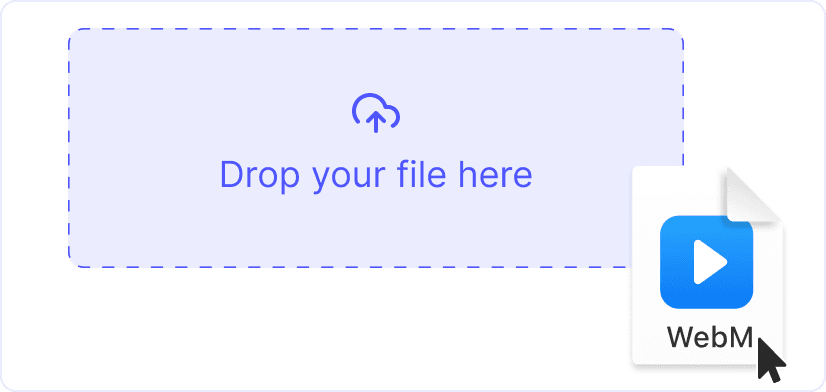
1. Upload your WebM

1. Upload your WebM

Click “Upload” or drag a video onto the page. We handle HD and 4 K files up to 2 GB over encrypted HTTPS.

2. Choose MP4 settings

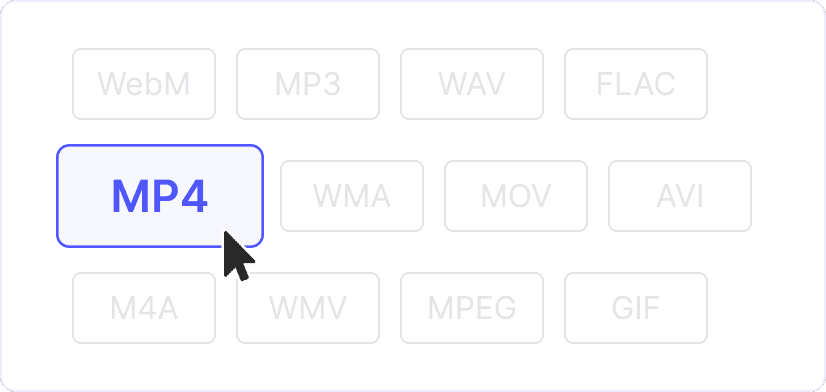
2. Choose MP4 settings

MP4 (H.264 + AAC) is pre-selected. In “Advanced settings” you can trim, resize or pick a constant bitrate for smaller files.

3. Download the MP4

3. Download the MP4

Press “Convert”. Your .mp4 is ready in seconds - drop it into iMovie, WhatsApp, PowerPoint or any media player.

Convert now
Easy convert WebM to MP4

Universal playback

H.264 MP4 format plays natively on virtually every device and platform - iOS, iPhone, iPad, Android phones and tablets, Windows PCs, macOS, Linux, Smart TVs, game consoles (PlayStation, Xbox, Nintendo Switch), media players, and nearly every modern browser. Unlike WebM, which may fail on older iPhones, Safari browsers, or some TV systems, MP4 ensures smooth playback everywhere. This universal compatibility makes MP4 the ideal format for sharing videos across different devices, uploading to social media platforms, embedding in websites, or storing for long-term archival. Whether you're sending videos via email, uploading to cloud storage, or sharing on social media, MP4 guarantees your content will play on any device your audience uses.

One converter to all Format

Smaller files, same quality

Our intelligent encoder uses advanced compression algorithms to balance bitrate and resolution, maintaining high visual quality while significantly reducing file size. This optimization is perfect for email attachments (staying under common 25 MB limits), Learning Management System (LMS) uploads, Content Management System (CMS) integrations, social media sharing, cloud storage, and mobile device storage. The smart encoding process analyzes your WebM source and applies optimal settings to create smaller MP4 files without noticeable quality loss, making it easier to share, upload, and store your videos while preserving the visual integrity of your content.

Explore more free tools

Enhance your converted MP4 videos with our complete editing suite. Trim, resize, add subtitles, or download videos - everything you need in one browser-based workspace.
Video Resizer

Video Resizer

Resize any video for TikTok, Instagram or YouTube online: crop or fit perfectly with zero quality loss.
Add Emoji

Add Emoji

Add vibrant emoji stickers to videos in-browser: choose size, position and timing to match every scene.
Trim Video

Trim Video

Cut beginning, middle or end of any clip online: trim precisely, remove unwanted parts, keep best moments.
Reverse Video

Reverse Video

Play footage backward for social posts: upload, reverse instantly in one click, then download the edited file.
MP4 to MP3

MP4 to MP3

Extract high-quality MP3 audio from MP4 movies online: fast conversion, no installs, zero loss in bitrate.
Add Stickers

Add Stickers

Insert fun, colorful stickers on video frames: drag, resize, schedule appearance and boost viewer engagement.
YouTube Downloader

YouTube Downloader

Download YouTube videos to your device in chosen format and resolution: quick, secure, no quality degradation.
Add GIF

Add GIF

Overlay animated GIFs on top of any video track: control size, placement and timing for dynamic visual effects.
Crop Video

Crop Video

Crop footage directly online to focus on key content: set custom frame, remove distractions, export instantly.
YouTube to MP3

YouTube to MP3

Convert YouTube links to MP3 audio in seconds: keep music, podcasts or lectures offline with perfect fidelity.
TikTok Downloader

TikTok Downloader

Save TikTok videos in HD without watermark: paste the link, download instantly for offline viewing or edits.
Twitter Downloader

Twitter Downloader

Grab videos from Twitter posts in multiple qualities: paste URL, download fast and watch offline anytime.
YouTube to MP4

YouTube to MP4

Get YouTube videos as MP4 files with selectable quality: copy URL, convert online, store for editing or sharing.
Instagram Downloader

Instagram Downloader

Download Instagram videos, Reels, stories and IGTV in high definition: no login, no watermarks, free forever.
AVI to MP4

AVI to MP4

Convert legacy AVI files to modern MP4 format online: reduced size, broader compatibility, instant download.
MP4 to FLAC

MP4 to FLAC

Extract lossless FLAC audio from MP4 clips: preserve full quality for music archiving or professional editing.
WebM to MP4

WebM to MP4

Transform WebM videos to universal MP4 for smooth playback on any device: drag, convert and save quickly.
MP4 to WMA

MP4 to WMA

Turn MP4 video into compact WMA audio files within your browser: efficient size, ideal for Windows players.
MP4 to DivX

MP4 to DivX

Re-encode MP4 movies to high-compression DivX format: smaller files, good quality, ready for legacy devices.
MP4 to MOV

MP4 to MOV

Change MP4 videos to Apple-friendly MOV format online: perfect for QuickTime or Final Cut workflows.
MP4 to M4A

MP4 to M4A

Strip audio from MP4 and save as clean M4A tracks: great for iOS playlists and streaming with small file size.
MP4 to AVI

MP4 to AVI

Convert MP4 clips to widely supported AVI containers: maintain quality while ensuring legacy device playback.
MP4 to WebM

MP4 to WebM

Export MP4 content as lightweight WebM for web delivery: faster streaming and reduced bandwidth consumption.
MP4 to WMV

MP4 to WMV

Switch MP4 videos to WMV format for smooth playback on Windows PCs and classic media players.
MP4 to MPEG

MP4 to MPEG

Repackage MP4 footage as standard MPEG files: optimize for broadcasting, DVDs or older hardware.
MP4 to MPG

MP4 to MPG

Convert MP4 files to MPG quickly online: ensure compatibility with vintage devices and authoring software.
MP4 to WAV

MP4 to WAV

Extract uncompressed WAV audio from MP4 video: ideal for editing, podcasts or high-quality sound archiving.
MP4 to FLV

MP4 to FLV

Turn MP4 videos into lightweight FLV for legacy web players: faster loading without sacrificing clarity.
MP4 to M4V

MP4 to M4V

Convert MP4 to DRM-ready M4V for effortless sync with iTunes, Apple TV and other iOS environments.
MP4 to MKV

MP4 to MKV

Wrap MP4 streams in flexible MKV containers: add subtitles, multiple tracks and achieve better compression.
MP4 to GIF

MP4 to GIF

Create looping GIF animations from MP4 snippets: select range, convert online, share on social platforms.
MP4 to WebP

MP4 to WebP

Generate animated WebP images from MP4 clips: enjoy tiny file sizes and rapid page loading speeds.
MP3 to MP4

MP3 to MP4

Combine MP3 audio with still imagery to form MP4 video: ideal for YouTube or social music sharing.
WAV to MP4

WAV to MP4

Encode WAV audio into MP4 video with a static cover: reduce size and improve compatibility for uploads.
GIF to MP4

GIF to MP4

Upgrade looping GIFs to smooth MP4 video: smaller files, better quality, compatible with all devices.
See all features

FAQ

Why convert WebM to MP4?

MP4 with H.264 codec is accepted by virtually all devices, operating systems, and applications, while WebM format may fail on older iPhones, Safari browsers (especially on iOS), some Smart TVs, legacy media players, and certain video editing software. Converting WebM to MP4 ensures smooth playback everywhere - on mobile devices, desktop computers, tablets, gaming consoles, streaming devices, and web browsers. MP4 is the industry standard format for video distribution, making it ideal for sharing videos via email, uploading to social media platforms, embedding in websites, storing in cloud services, or archiving for long-term use. If you need maximum compatibility and want your videos to play on any device your audience might use, MP4 is the reliable choice.

Does the conversion keep the original quality?

Yes, our conversion process uses a smart Variable Bitrate (VBR) H.264 encoder that intelligently preserves visual detail while optimizing file size. The encoder analyzes your WebM source and applies adaptive bitrate encoding to maintain high quality throughout the video, allocating more bits to complex scenes and fewer bits to simpler frames. For near-lossless results that closely match your original WebM quality, choose a higher bitrate in "Advanced settings" - this will create larger files but preserve maximum visual fidelity. The default settings provide an excellent balance between quality and file size, suitable for most use cases. If you need professional-grade quality for editing or archival purposes, increase the bitrate accordingly.

Will the audio track be converted too?

Yes, the audio track is automatically converted during the process. Opus or Vorbis audio codecs from the WebM file are transcoded to AAC (Advanced Audio Coding), which is the standard audio format for MP4 files. AAC provides excellent audio quality at lower bitrates and is universally supported by all media players, devices, and platforms. This ensures your converted MP4 will play audio correctly on every device - from iPhones and Android phones to Windows Media Player, VLC, and all modern browsers. The audio conversion maintains the original quality while ensuring maximum compatibility, so you'll hear clear, crisp sound on any device that plays your MP4 video.

Can I make the MP4 smaller for email attachments?

Absolutely. After uploading your WebM file, you can lower the resolution or bitrate in Advanced settings to generate a lighter MP4 file that fits under common email attachment limits (typically 25 MB for most email providers like Gmail, Outlook, and Yahoo). Reducing the resolution (e.g., from 1080p to 720p or 480p) or lowering the bitrate will significantly decrease file size while still maintaining acceptable quality for viewing. This is perfect for sharing videos via email, sending to colleagues or clients, or uploading to platforms with file size restrictions. The Advanced settings give you full control over the output file size, allowing you to create the perfect balance between quality and file size for your specific needs.

Does MP4 support transparency like WebM with alpha?

Standard H.264 MP4 format does not support alpha channel transparency. If your WebM file has transparency (alpha channel) and you need to preserve it, you have two options: keep the file in WebM VP9-alpha format (which supports transparency), or export as MOV ProRes 4444 format (which also supports alpha channels). However, if you convert a transparent WebM to standard MP4, the transparent areas will be filled with black or another solid color. For most use cases where transparency isn't required, MP4 is the better choice due to its universal compatibility. If transparency is essential for your project (such as overlays, graphics, or compositing), consider keeping the WebM format or using ProRes 4444 for professional video editing workflows.

What is the maximum upload size?

You can upload WebM videos up to 2 GB per file for conversion. Larger video projects should be trimmed or compressed locally before upload to ensure faster processing and smoother conversion. The conversion time depends on factors such as file size, video resolution, codec complexity (VP8 vs VP9), and selected encoding settings. For very large files, consider splitting them into smaller segments, trimming unnecessary parts, or using video editing software to optimize the source material first. All files are processed securely using encrypted HTTPS connections, and larger files receive the same level of privacy protection and automatic deletion as smaller ones.

How secure are my files?

Your files are completely secure during the conversion process. All file transfers use encrypted HTTPS connections to protect your data during transmission from your device to our servers. Files are processed securely in volatile memory (RAM) only and are automatically deleted from our servers within minutes after conversion completion. We never store downloaded content permanently, share your files with third parties, or access your media beyond the conversion process. This ensures complete privacy and security for all your video content - your files remain yours alone, with no permanent storage, tracking, or data retention. Enterprise-grade security for your sensitive video files.