The Best Video Format for the File You Already Have
The format only sets a quality ceiling at the moment you record or export. After that the format decides compatibility, not quality. Here is what to send and when to leave the file alone.
Updated August 31, 2026
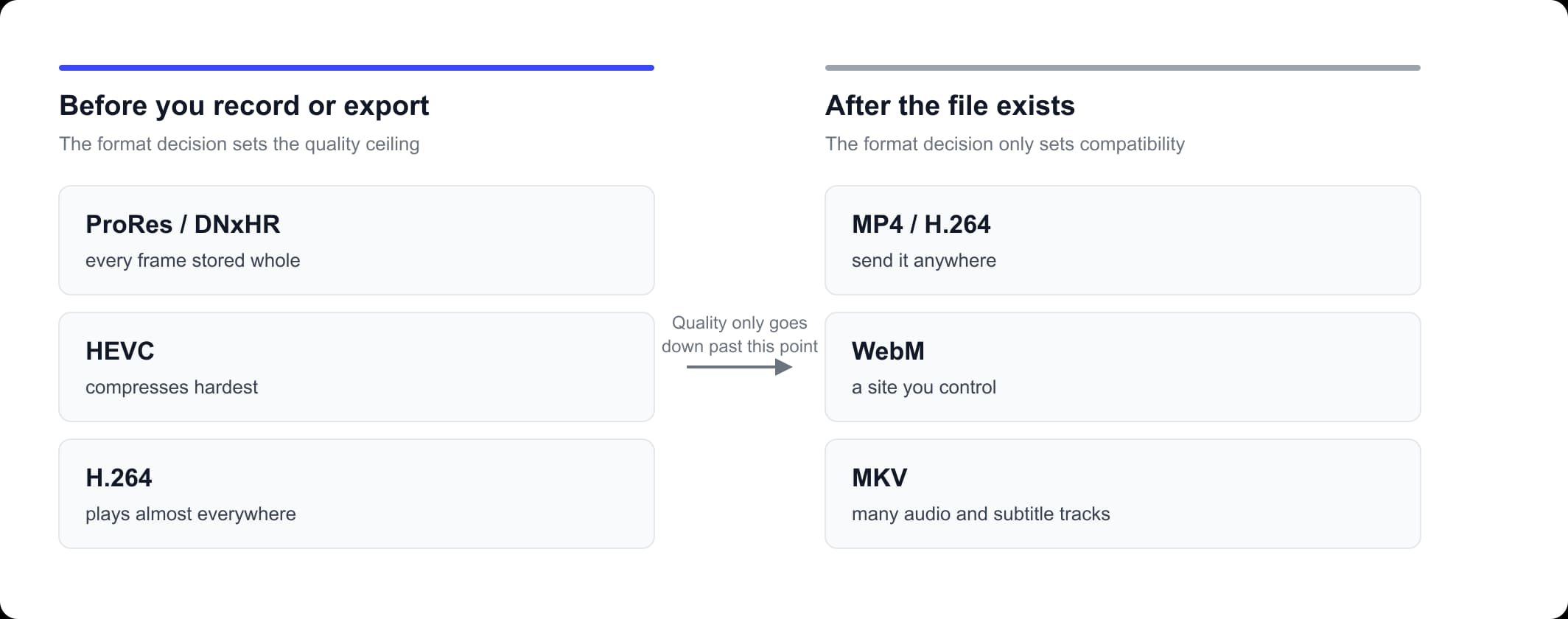
The short answer, and the three cases where it is wrong
The best video format is MP4 with H.264 video and AAC audio inside it. Send that to a platform, a client, a browser or a phone and it will play. MDN's media container reference marks three containers as supported by all browsers: MP4, WebM and Ogg. Of the three, MP4 is the one that phones, cameras and editing programs also write by default. MP4 is a good video format for one reason that outranks all the others: almost nothing refuses it.
Three situations change that answer, and nothing else does.
- You are still editing. A master you will re-open and re-export should be ProRes or DNxHR, mastering codecs that store every frame whole, so editing software scrubs smoothly and repeated saves cost almost nothing.
- The video sits on a website you run. Offer WebM alongside MP4. Both are in MDN's all-browser list, and WebM usually gives you a smaller second source of the same picture.
- The file stays on your own drive and carries more than one language. MKV holds many audio and subtitle tracks in one file, which is the job it does better than MP4.
Outside those three, MP4 with H.264 is the best format for video files leaving your computer and the best video file format for anything you upload, email or hand over on a drive. If your file is already MP4 with H.264 inside, you are finished.
Which of the two questions are you asking?
The word "best" means two unrelated things here, and which one applies depends on whether the file exists yet. If nothing has been recorded or exported, the format you choose sets a ceiling on how good the result can ever be, because the codec and the bitrate are what throw picture data away. If the file already exists, that ceiling was set at the moment it was written, and the format now decides one thing only: what will open it.
Most people asking which video format is best are in the second case. You have a file, something refused it or somebody asked for a different extension, and now you are reading format comparisons. The honest answer is usually to do nothing, because no format you convert to will hold more picture than the file already holds. That is not a reason to ignore format. It is a reason to convert once, for compatibility or size, and never in the hope of an upgrade.
A format is two things, and only one of them decides quality
A video file format is two separate choices wearing one name. The container is the outer file, the part the extension names: .mp4, .mov, .webm, .mkv, .avi. A container holds the streams and the metadata side by side, and compresses nothing. The codec is what compressed the picture and the sound before they went in: H.264, HEVC, AV1, VP9 or ProRes for the picture, AAC, Opus or PCM for the sound. Quality lives in the codec and in the bitrate it was given. In practice a video format is a box plus its contents, and the extension names only the box.
An iPhone makes the split concrete. Apple documents that the camera records HEVC by default, and H.264 instead if you open Settings, tap Camera, tap Formats and choose Most Compatible. Same phone, same scene, and the two recordings look identical in Photos. What differs is the codec inside, and that decides whether an older Windows machine or an editing program will open it. Apple also documents that media shared over AirDrop, Messages or email might be converted automatically to a more compatible format such as H.264 when the receiving device cannot handle the newer one. That is why the same recording plays for one person and stalls for another.
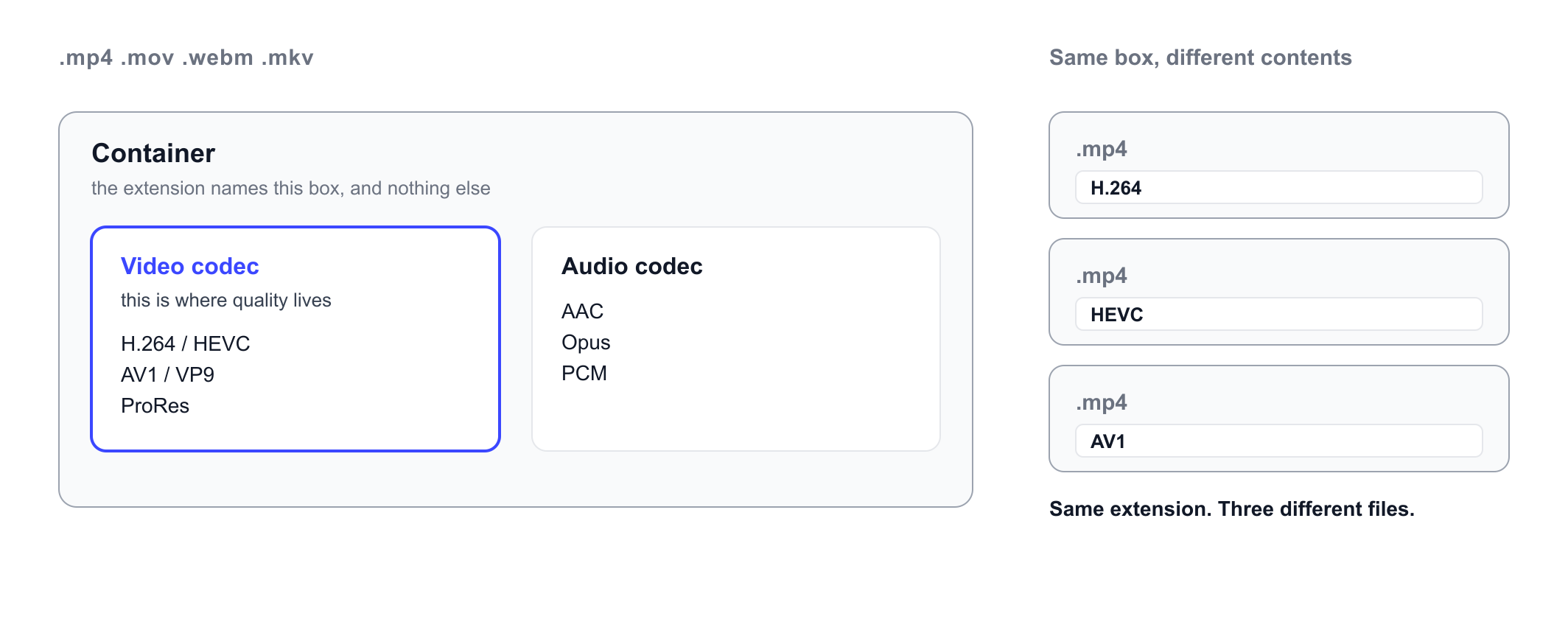
Nothing on the outside of a file tells you which codec is inside: the same .mp4 extension can sit over H.264, HEVC or AV1. To find out, open the file in VLC and look under Tools, then Codec Information, or use Get Info on macOS and Properties, then Details on Windows. Six common video file formats cover nearly everything you will meet.
| Container | Usually holds | Plays where | Use it for |
|---|---|---|---|
| .mp4 | H.264 or HEVC, AAC | All browsers | Sending files anywhere |
| .mov | H.264, HEVC or ProRes | Apple software, VLC | Apple editing workflows |
| .webm | VP9 or AV1, Opus | All browsers | Video on your own site |
| .mkv | Almost any codec | VLC, most media players | Local libraries, many tracks |
| .avi | Whatever was put in | Desktop players | Files you already have |
| .wmv | WMV video, WMA audio | Windows, VLC | Old Windows files |
MP4 with H.264 is the most common video format in circulation and, by the same measure, the most popular video format. It is the standard video format in the one sense the phrase can carry: the digital video file format that most cameras, phones and editing programs write unless they are told otherwise. No committee declared that. Adoption did. That says how widely MP4 is accepted, not how good it looks. AVI makes the gap visible: an old container, still perfectly readable, holding whatever codec was put into it, so calling AVI a high-quality format describes nothing.
The highest quality video format, and what it costs
The highest quality video format is not MP4, and it is not a container at all. Ranked by how much of the original picture survives, the order runs: uncompressed video, then intra-frame mastering codecs such as ProRes and DNxHR that store every frame whole, then modern lossy codecs given plenty of bitrate, which is where AV1 and HEVC sit because they compress hardest, then H.264. Lossy means the encoder permanently discards data it judges you will not miss. Lossless does not discard anything. H.264, HEVC, AV1 and VP9 are all lossy in normal use. So the question of what is the highest quality video format is really about codecs, and the extension you wrap the result in does not change the answer. Apple states the cost of the top tier plainly: ProRes files are up to 30 times larger than HEVC files.
Three tiers cover the practical range, and the best video format for quality is a different thing in each of them.
| Tier | What you get | What it costs |
|---|---|---|
| Deliver | MP4 with H.264 | One lossy encode |
| Edit | ProRes or DNxHR | Up to 30x HEVC size |
| Archive | Uncompressed or lossless | The largest files of all |
At the mastering tier and above, the container has stopped mattering and the camera has taken over. Nothing you wrap the picture in adds detail the sensor never resolved, which is why there is no single highest video quality format and why the more useful question is what bitrate you exported at. Bitrate is the number of bits of picture data per second, and within one codec it is what actually sets quality. Google publishes a recommended figure for every resolution, and our guide to the bitrate to set before you export has the full table. The best quality video format for a file you will deliver is still MP4 with H.264 given enough bitrate, because a high quality video format nobody can open is not worth having.
Converting cannot put quality back
Converting a compressed video to another format cannot improve it, and usually makes the picture slightly worse. A conversion does one of two things. Remuxing, also called rewrapping, copies the existing video and audio streams into a different container and leaves the picture untouched. Re-encoding, also called transcoding, decodes the picture back to frames and compresses it again from scratch, so the second encoder throws away data on top of what the first one already discarded. Neither operation restores anything: the data the first encode threw out is not stored anywhere in the file. Converting an H.264 MP4 to ProRes produces a much larger file that, at best, looks exactly like the H.264 file it came from.
That leaves two honest reasons to convert a file you already have. The first is that something will not open it: an editing program that refuses WebM, or a device that cannot decode the codec inside. The second is size, when you need a smaller file and accept the cost of a second encode to get one. "Another format is higher quality" is not a third reason. When you do convert, work from the original file rather than from a copy that has already been through a conversion, because each pass compounds on the last.
What plays where
Send MP4 with H.264 unless a row below says otherwise. For a browser, the MIME type matters as much as the file: a MIME type is the label a server sends so the browser knows what it has been handed, video/mp4 for MP4 and video/webm for WebM. Send the wrong label and the browser refuses a file it could otherwise play, which is one of the three causes behind no video with supported format and MIME type found. MDN gives QuickTime MOV the MIME type video/quicktime and records its browser support as only older versions of Safari, so a MOV on a public web page is a gamble. For YouTube, Google's upload spec names MP4 as the container, H.264 as the video codec and AAC-LC as the audio codec, with Opus also accepted.
| Where it is going | Send this | Note |
|---|---|---|
| Web browsers | MP4 with H.264 | MIME type video/mp4 |
| YouTube and social | MP4, H.264, AAC-LC | Google's spec for YouTube |
| A website you control | MP4 plus WebM | Both work in all browsers |
| Windows | MP4 with H.264 | Built-in player reads it |
| macOS and iPhone | MP4 or MOV | MOV for Apple apps |
| Android | MP4 with H.264 | Same file as Windows |
| Editing software | MP4, MOV or ProRes | ProRes if you have it |
| Slide decks | MP4 with H.264 | Safest single choice |
| Smart TV or USB stick | MP4 with H.264 | MKV on some players |
The best video format for Windows is the same MP4 with H.264 as everywhere else. That repetition is the point: one answer runs down almost every row, and the exceptions are easy to see.
If the file is in the wrong format
Convert when something has actually refused the file, and convert once. Four cases have a tool here. Two do not.
- An AVI that a platform or an editing program will not take. AVI is old enough that plenty of modern software has stopped reading it, which makes this the most common case. Our AVI to MP4 converter accepts .avi files and returns MP4.
- A WebM saved from a browser that your editor will not open. WebM is what a browser hands you when you save video from a page, and most editing software will not open it. Our WebM to MP4 converter takes .webm and returns MP4.
- An MP4 that Final Cut or another Apple workflow wants as MOV. Our MP4 to MOV converter takes .mp4 and returns MOV.
- Video for a site you run, where you want a second, smaller source. Add a WebM version and let each browser take the one it prefers. Our MP4 to WebM converter takes .mp4 and returns WebM.
Two common cases have no converter here. There is no MOV, MKV, WMV or HEVC input on this site, so a MOV from a camera or an MKV from a download has to go another way: re-export from the program that made it, which costs one encode instead of two, or open it in a desktop application. Pointing you at a tool that would reject the file helps nobody.
An iPhone recording deserves a different answer. If the same phone keeps producing files that other people cannot open, the fix is not a conversion. Open Settings, tap Camera, tap Formats and choose Most Compatible before the next shoot. Apple documents that the camera then records H.264 rather than HEVC. That setting costs nothing. Converting each file afterwards costs a generation of quality every time.
How to decide what format your file needs to be in
Five checks between the file you have and the file the destination will accept.
Find out what you actually have
The extension names the container, not the codec. Open the file in VLC and look under Tools, then Codec Information, or use Get Info on macOS and Properties, then Details on Windows.
Decide where it is going
A browser, a platform, an editing program and a smart TV want different things, and most of them want MP4 with H.264.
Check what the destination accepts
If it already accepts the file you have, stop here. Converting costs a re-encode and gains nothing.
Convert once, if you have to
Convert to MP4 with H.264 unless the destination asked for something else. Work from the original file rather than from a copy that has already been converted.
Change the capture setting instead
If the file came from an iPhone and the problem keeps returning, converting every file is the wrong fix. Open Settings, tap Camera, tap Formats and choose Most Compatible, so the next recording is H.264 to begin with.
Frequently asked questions
Read more articles

The YouTube Bitrate to Set Before You Export

The Video Will Not Play: What "No Video With Supported Format and MIME Type Found" Means

The Shape to Export for YouTube, and How the Player Adapts