The Shape to Export for YouTube, and How the Player Adapts
The aspect ratio for YouTube video is 16:9, and 1920x1080 is the pixel size that usually carries it. Upload another shape and the player fits itself around it rather than cropping your frame.
Updated September 4, 2026
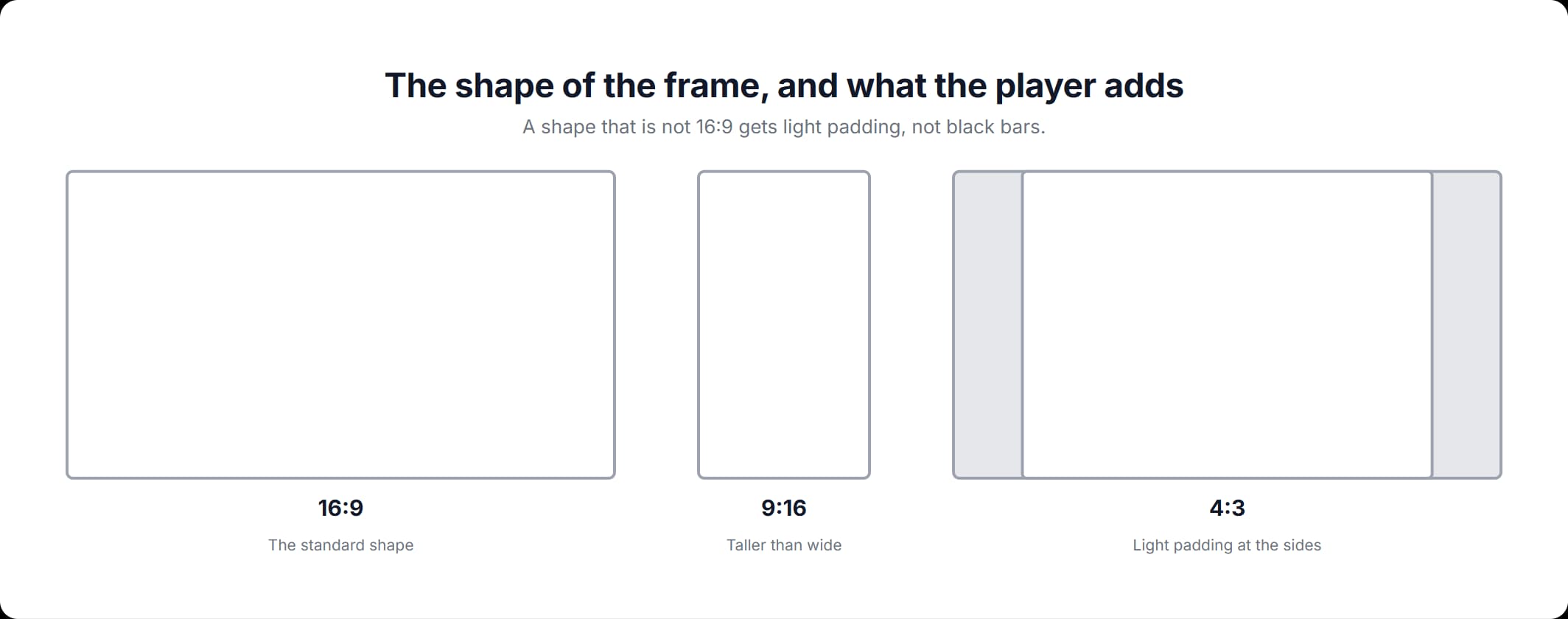
The short answer: 16:9
The standard YouTube video aspect ratio is 16:9. YouTube's Help page on video resolution and aspect ratios puts it in one line: "The standard aspect ratio for YouTube on a computer is 16:9." Aspect ratio means the shape of the frame: its width against its height, written as two numbers with a colon. The ratio says nothing about how many pixels fill that frame.
16:9 describes how your video will be displayed, not what YouTube will accept. Other shapes upload normally. YouTube's recommended upload encoding settings say that "when uploading other aspect ratios such as vertical or square, the player automatically adapts itself to the size of the video." So what is the aspect ratio of a YouTube video? On the main site, 16:9. For Shorts, the answer is different.
The resolutions that make a 16:9 frame
Google publishes the pixel dimensions that carry the 16:9 shape, from 240p up to 4320p. They are all on the same video resolution and aspect ratios page.
| Resolution | Pixel dimensions |
|---|---|
| 4320p (8K) | 7680x4320 |
| 2160p (4K) | 3840x2160 |
| 1440p (2K) | 2560x1440 |
| 1080p (HD) | 1920x1080 |
| 720p (HD) | 1280x720 |
| 480p (SD) | 854x480 |
| 360p (SD) | 640x360 |
| 240p (SD) | 426x240 |
The aspect ratio of YouTube video in every one of those rows is 16:9. Only the pixel count changes. 1920x1080 is the 1080p row, the size that export dialogs label Full HD. Google also names a minimum: its video and audio formatting specifications recommend a resolution of at least 1280x720 for video that has a 16:9 aspect ratio.
Aspect ratio and resolution measure different things
Aspect ratio is the shape of the frame. Resolution is the number of pixels in it, written width by height. Take two rows from the table above: 3840x2160 and 1280x720. Divide the width by the height and each one gives 1.778, so both frames are 16:9. One of them has nine times the pixels of the other.
The aspect ratio of a YouTube video decides how the player frames it and whether padding appears around it. The resolution decides how much detail survives the compression YouTube applies after the upload. If resolution is what you came for, our guide to what resolution and bitrate to export at answers it.
What YouTube does with a video that is not 16:9
YouTube reshapes the player around your video rather than reshaping your video. Its resolution and aspect ratios page says: "If your video has a different aspect ratio, the player will automatically change to the ideal size to match your video and the viewer's device." The upload encoding settings page repeats it for vertical and square uploads.
Padding is the neutral area the player puts around a video whose shape does not fill the space available. Google names its color. The same page says "for some video and device aspects ratios like 9:16 vertical videos on computer browsers, YouTube may add more padding for optimal viewing," and "the padding is white by default, and dark gray when Dark theme is turned on." If you have read that YouTube adds black bars, that is not what Google describes.
Google gives two instructions.
- Do not draw the bars yourself. "For best results, avoid adding padding or black bars directly to your video," says the same page, because "padding interferes with YouTube's ability to change the player dynamically to your video size and the viewer's device." The formatting specifications add: "Videos should be in their native aspect ratios, and uploaded videos should never include letterboxing or pillarboxing bars." Letterboxing is bars above and below the picture; pillarboxing is bars at its sides.
- Upload the native aspect ratio. That is the shape the footage was recorded or exported in, before anything is added around it. Uploading it that way gives the player something to adapt to. Bars drawn into the frame become part of the picture, so the player can add padding around them.
Shorts: square or vertical
Shorts use a different rule, and Google words it without a number. The Help page on uploading YouTube Shorts states the requirement as "up to 3 minutes" and "with a square or vertical aspect ratio." So the video aspect ratio for YouTube depends on where you are posting: 16:9 for the main site on a computer, square or vertical for Shorts.
9:16 is the vertical shape that fills a phone screen, taller than it is wide, and Google names it in one place. Google Ads Help's Shorts asset specifications say "vertical videos, with a 9:16 aspect ratio, are best suited for the Shorts format." That is an advertising asset spec rather than the organic upload requirement.
- Duration: up to 3 minutes, per the Shorts upload page.
- Shape: square or vertical for an organic upload; 9:16 in the Google Ads asset spec.
- Maximum upload resolution: 1080p. "You can upload Short videos with a maximum resolution of 1080p," says Google's getting started with Shorts page.
Checking the shape of the file you have
The aspect ratio for YouTube video you have already shot is readable from the file itself.
- Read the dimensions your operating system reports. Open the file's properties and look for the width and height in pixels: 1080x1920 is a vertical phone recording; 1920x1080 is 16:9.
- Divide the width by the height. 1.778 is 16:9; 0.5625 is 9:16; 1.333 is 4:3; 2.39 is wide cinema. Any other figure is a shape the player will fit itself around.
If the footage is genuinely another shape, upload it as it is. Google's formatting specifications ask for the native aspect ratio, and the player handles the rest. Reframing means losing part of the picture: taking a 16:9 window out of a vertical frame throws away everything above and below it.
When you do want that window, our crop tool runs in your browser and takes files up to 1 GB: pick the 16:9 or 9:16 preset, move the window over the frame, and the export keeps what is inside it and discards what is outside. Nothing is installed, and the file is processed in the page rather than uploaded anywhere. For the upload itself Google's own advice stands: send the footage at its native shape and the largest size you have, and let the player do the fitting.
Frequently asked questions
Read more articles

The YouTube Bitrate to Set Before You Export

Cropping in Practice: Ratio Presets and Clean Exports

The Best Video Format for the File You Already Have