Cropping in Practice: Ratio Presets and Clean Exports
Some of what people call cropping is really resizing, and the difference decides what you should do to the file. Ratio presets, what the window keeps, and how to give the encode the best source you have.
Updated September 4, 2026
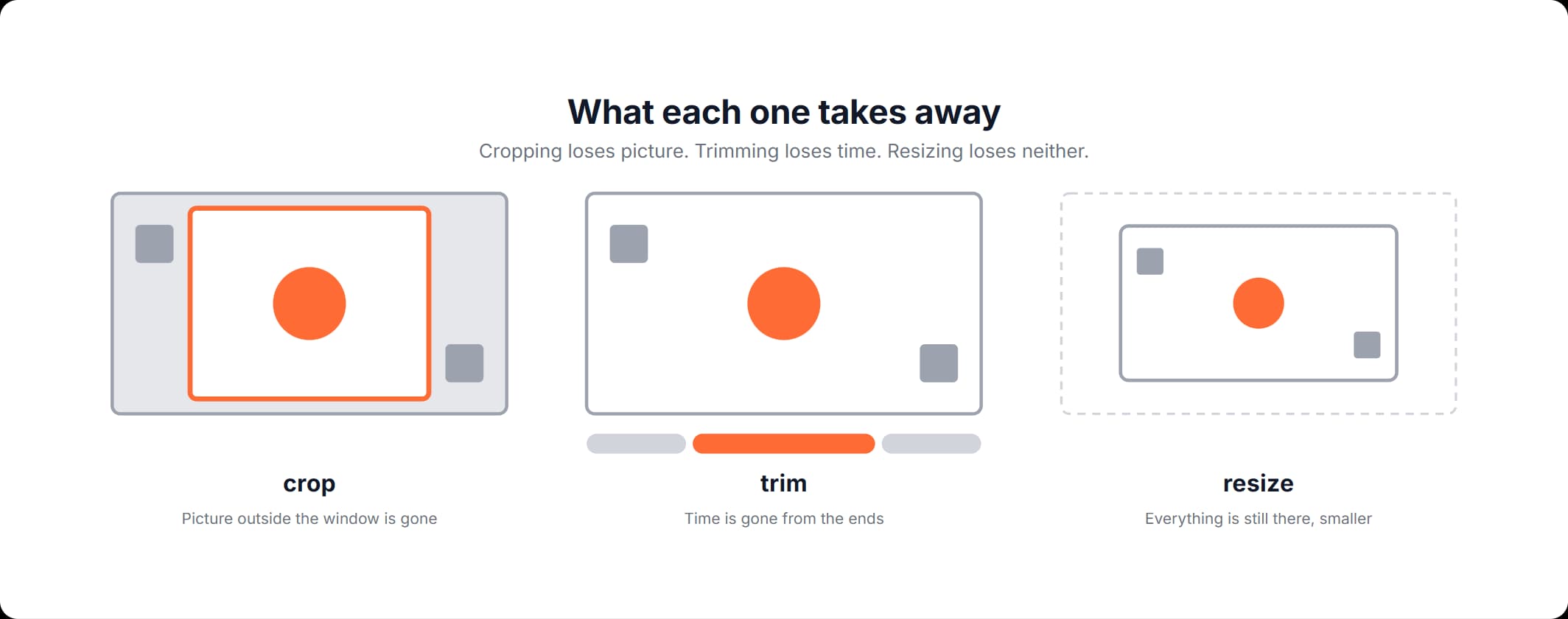
Crop, trim or resize: what each one takes away
Yes, you can crop a video. Cropping keeps a rectangle of the picture and discards everything outside it, on every frame, from the first second to the last. The picture area gets smaller, and the running time does not change. Crop the edges of a video, and those edges are gone from the file, not hidden in it.
The word crop is doing two jobs, though, and the second one sends people to the wrong tool. Searches like how to crop size of video and how to crop a video size are usually about the frame's pixel dimensions: the video has to come out at a certain width with the whole picture still inside it. That is a resize. A crop cuts the video picture down to your window. A resize rescales the whole picture into a different frame size and keeps everything in it.
| What you want | What changes | What stays | Where to do it |
|---|---|---|---|
| Less picture: the edges of the frame cut off | The picture area gets smaller, and the file is written again | The running time and whatever is inside your window | Crop the frame in your browser |
| Less time: a shorter clip | The running time, from the start, the end or both | Every pixel of the picture | Remove time instead of the picture |
| A specific frame size, which is what crop size of video usually means | The pixel dimensions of the whole frame | Everything in the picture, rescaled to fit | Not the crop tool: a typed size there sizes the window, it does not rescale the picture |
How to crop a video in your browser
How to crop a video, end to end: open the crop tool, add your file, drag a window over the part of the frame you want to keep, export, then look at what you got. That is the whole answer to how do you crop a video. The crop is computed in the page, on your own machine, so the file is not uploaded and there is no account step. A free video crop here has one real limit, 1 GB per file. The input is a video file your browser can already open, or a GIF.
- Open the crop tool. Start on the page that crops a video frame in the browser. Nothing is installed and nothing asks you to sign in.
- Add your video. Files up to 1 GB are accepted. The narrow question behind crop my video is usually whether the file has to go somewhere first. It does not: the page reads it locally, and the video stays on your device.
- Set the crop window. Drag the box from any edge or corner; it stays inside the frame. Guide lines run through it to help you line the subject up, and the window's width and height are shown in the source file's own pixels, in two fields you can type into. Those numbers are bigger than the box on screen suggests. The easiest way to crop a video to a particular shape is to press a ratio preset, then move the window.
- Export. The page applies the crop, encodes the video again and gives you an MP4 to save. The encode runs in the tab, on your own processor, which is why cropping a video in a browser needs no upload.
- Check the file you got. Open the exported MP4 before you publish it, read its dimensions and check that the subject is still where you put it. The section on what the crop costs explains why.
Cropping to square, vertical or 16:9
A ratio preset fits the largest window of that shape inside your frame. On a landscape source it takes the full height and works the width out from the ratio, so 1:1 gives a square as wide as the frame is tall and 9:16 narrows to a little over half that; on a square or a tall source it takes the full width instead. Either way the window lands inside the picture rather than over its edge. A preset crops: it does not scale the picture to fit and it does not add bars, so whatever falls outside the window is discarded.
An aspect ratio is the shape of the frame, its width against its height, and it says nothing about pixel count. 1:1 describes a square at any size, so a video square crop of a large source and one of a phone clip are the same operation on different amounts of picture. Going from a wide source to 9:16 throws away most of the width, which is why the preset rarely lands where you want on the first press. Then drag the window sideways until the subject is back in the middle.
| Ratio | Shape | What people use it for |
|---|---|---|
| Original | The source's own shape | Putting the window back around the whole frame |
| 1:1 | Square | Square feed posts and profile clips |
| 16:9 | Wide, landscape | The default shape for screens and players |
| 9:16 | Tall, portrait | Full-screen video in vertical feeds on phones |
| 4:3 | Nearly square, landscape | Older cameras and archive footage |
| 3:4 | Nearly square, portrait | Portrait video that need not fill a phone screen |
A ratio is a shape, not a size. If a destination has handed you a pixel width and height instead of a ratio, type both straight in: the crop panel has a width field and a height field, both in the source file's own pixels, Enter commits what you typed and Escape puts the old numbers back. What they set is the crop window, so a typed size takes that much picture out of the frame rather than rescaling the whole picture into it. Match the shape or type the numbers, then read the exported file before you send it anywhere.
Crop MP4 video, and what comes back out
Crop MP4 video, and what you get back is a new MP4, not your original with less picture in it. The page decodes the video, applies the crop to the decoded frames and encodes those frames again, which is a re-encode. There is no way around that step: a crop changes the geometry of every frame, and changed frames have to be written out again. Any crop MP4 video online means the same three moves, and so does software you install for it.
Here the crop and the download happen in one pass. The page re-encodes the file in the tab and hands you the MP4 to save, with no upload and no server in between.
Inputs that are not MP4 also come back as MP4. So if you crop MOV video and need a MOV at the end, crop first, then run the result through MP4 to MOV. A GIF is not video, so the page turns it into an MP4 before anything can be cropped. If that conversion is the whole job, GIF to MP4 is the page for it. MP4 is the container, the box the picture and sound travel in, and H.264 is the codec the picture itself is encoded with. Our guide to which container and codec to keep a file in works through the difference.
Crop video without losing quality: what that actually means
Crop video without losing quality is the phrase people search most here, and it hides two different worries. The first is the picture area: a crop keeps a window and discards what was outside it. That is not a defect, it is the definition of cropping, and it works exactly the same way in software you pay for. The second is the encode. Changed frames have to be written out again, so the file carries one generation of compression on top of what it already had, and every cropping tool ever built does that — desktop editors included — because there is no way to change the geometry of a frame without rewriting it.
So the useful question is not whether there is an encode. It is how good a source you hand it. Two things keep the result clean. Crop from the largest and least compressed file you have rather than from a copy that has already been through a platform once, because every round of encoding starts from what the previous round left behind: that is the difference between cropping what came off the camera and cropping what you already posted somewhere. And read the exported file before you publish it — check its dimensions, and check that the subject is still inside the frame.
How to crop a video on PC or on a phone, without installing anything
How to crop a video on PC: open the crop page in the browser that is already on the machine and do the whole job in that tab. Nothing is installed, which is why a crop video PC search need not end in a software download. On a phone the page is the same page, and the crop window responds to touch. So how to crop video on Android comes down to the same actions, with a finger instead of a mouse. An iPhone gets the same answer, because the browser does the work either way. The crop is computed in the page, so the file stays on the device. The 1 GB ceiling is the same in both places. If the clip is on your phone right now, open the crop tool there, set the window and check the exported file before it goes anywhere. The editor is in active development, and the tabs beside the crop one keep growing.
How to crop a video and check what came out
Five steps from your own file to an MP4 you have looked at.
Open the crop tool
Start on the crop page in the browser you are already using, with nothing to install first.
Add your video
Files up to 1 GB are accepted, and the file stays on your device because the page reads it locally instead of uploading it.
Set the crop window
Drag the box from any edge or corner until it covers the part of the frame you want to keep, press a ratio preset and move the window, or type the width and height you need into the two size fields.
Export the crop
The page applies the crop, encodes the video again in the tab and gives you an MP4 to save.
Check the file before you publish it
Open the exported MP4, read its dimensions and make sure the subject is still inside the frame.
Frequently asked questions
Read more articles

The Shape to Export for YouTube, and How the Player Adapts
VLC Trims by Recording: What That Means for Your File

The Best Video Format for the File You Already Have