VLC Trims by Recording: What That Means for Your File
VLC's trim is a recording feature: it writes a new file while the clip plays. Where that file is saved and what format it comes out in are the two things every tutorial skips, and cropping is a different job.
Updated September 4, 2026
Yes, you can trim a video in VLC, and the control is a recorder
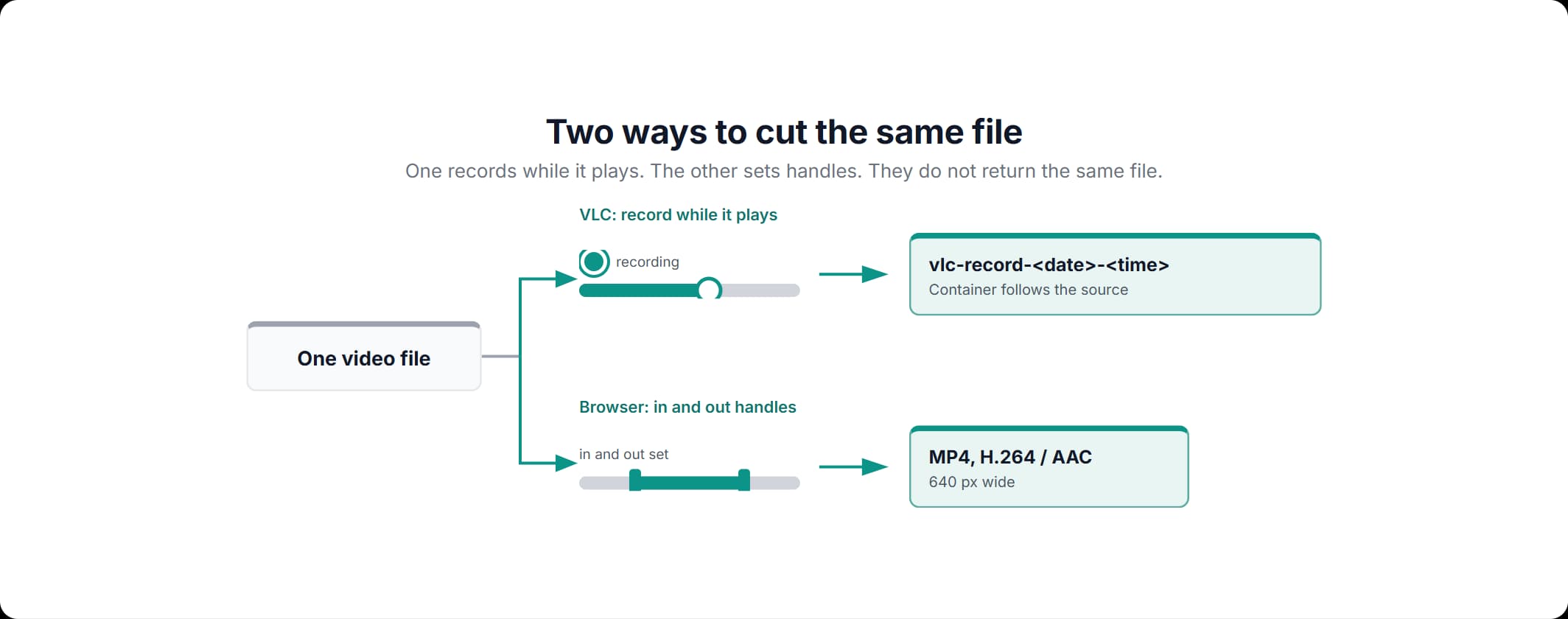
You can trim a video in VLC, and the control that does it is a recorder: it writes a new file while the clip plays. Everything else about how to trim video in VLC follows from that, including how long the job takes and where the file is saved. VLC media player trims video with a record control. The player is free and comes from VideoLAN, whose module documentation describes that control as "toggle recording incoming data to disk".
Trim and crop are two jobs, and the words get swapped constantly. How to trim video in VLC media player is about duration: the clip gets shorter. Cropping in VLC is about the frame: the picture gets narrower, or the black bars go.
How to trim video with VLC, step by step
To use VLC to trim video, show the record control, play the file to the start of the section you want, record through it and stop at the end. VideoLAN's documentation states that "The record button is hidden by default", so start there.
- Show the record control. VideoLAN's documentation says to "Select Advanced Controls in the View menu", after which "The Advanced toolbar is displayed on top of the standard toolbar".
- Set the destination folder. Under Tools, then Preferences, then Input & codecs, VLC has a field named "Record directory or filename". VideoLAN's how-to says to press Save and restart VLC afterwards.
- Play the file to your in point. Recording captures what plays from the moment you start it, so anything before that point is not in the file.
- Start recording and let the section play. It has to play at normal speed, because VLC writes the stream as it plays.
- Press the record control again at your out point. That closes the file, and the original is untouched.
Two things differ from an editor. The clip plays through in real time, so a ten-minute section costs ten minutes of watching it. And the out point is wherever playback had reached when you pressed the control the second time, judged by hand and by ear: there is no frame to type and no handle to nudge back.
Where the recorded file went, and what format it is
A VLC trim video pass leaves the file in a folder VLC chose, under a name VLC chose, in a container that follows the recorded stream. VideoLAN's own wiki does not name that folder for every system, which is why the clip gets lost.
| Question | What VideoLAN's documentation says |
|---|---|
| Where is it saved? | VideoLAN's page does not answer this for every system. It reports a German Windows XP machine storing the recording "under 'Eigene Dateien/Eigene Music'", guesses at "My Documents/My Music/" on an English Windows, and adds "I don't know where it will be stored under Linux or any other OS". |
| What is it called? | The name begins vlc-record- and continues with the date and the time. The wiki's example, from a radio stream, is "vlc-record-2011-09-22-10h19m48s-Radio CAFF-Silencio - Arrabal Salvaje.mp3". |
| What format is it? | The record module's description is "toggle recording incoming data to disk", so the container follows what was coming in. The same page warns that the module "is very unlikely to work for sources using an encapsulation method other than ts". |
| How do you change the folder? | Under Tools, then Preferences, then Input & codecs, in the field named "Record directory or filename". Press Save and restart VLC afterwards, per VideoLAN's how-to. |
A container is the box the picture and sound are packed in, and it is what the extension names: MP4, MKV or TS. A codec is how they were compressed inside it. The record module writes incoming data to disk, so you get the container that arrived. The encapsulation it is documented to handle is a transport stream, used for broadcast and streamed feeds. That is worth reading twice, because it says what the control was built for. VideoLAN's own page warns that the module "is very unlikely to work for sources using an encapsulation method other than ts", and an MP4 off a phone or a camera is not that.
So set the record folder before recording. If you have already recorded, search your user folder for vlc-record-: the name is fixed even where the location is not.
What differs on Windows and on Mac
The record control is the same on Windows and on macOS, and VideoLAN documents one way to reveal it: Advanced Controls in the View menu. How to trim video on VLC is therefore the same on both systems. On Windows the View menu is inside the VLC window. On macOS the application menus sit in the system menu bar along the top of the screen, so that is where you look instead. Toolbar layouts also differ between builds, so look for the record control itself rather than for a fixed position on the toolbar.
Trimming in VLC without recording the clip
If what you want is a VLC trim video without recording, the route inside VLC is Convert/Save. The record control writes the section while it plays, so nothing makes that go faster. VideoLAN's transcode page gives the entry point: "Open the Media menu and select Convert/Save". That route re-encodes the file through settings you choose and writes a new one. Use it when the file is long or the exact out point matters.
VLC crop video length means duration, not the frame. Two routes shorten a clip without recording it.
- In VLC: Convert/Save, from the Media menu. It has its own format and codec settings, and it writes a file rather than playing one.
- In a browser: a start handle and an end handle on a timeline. Our trim tool works that way, so the section is chosen before anything is processed and the clip never plays through in real time.
How to crop video in VLC, and why the crop usually does not stick
There are two VLC crop video operations, and only one of them changes the file. The Crop tab in the Effects and Filters window changes what you see while the video plays: VideoLAN's page for the related crop module describes that module as "Remove borders of the video and replace them with black borders". Writing a crop into a file takes the croppadd video filter plus a pass through VLC's transcoding route.
To crop video with VLC so that the change is in the file:
- Decide how many pixels to remove from each edge. The croppadd filter takes four values, named on VideoLAN's croppadd page as
croppadd-croptop("Pixels to crop from top"),croppadd-cropbottom,croppadd-cropleftandcroppadd-cropright, each an integer number of pixels. - Enable croppadd as the video filter, with those four values. The filter applies the crop to the frames as they are written, so it has to be on before the pass starts.
- Open the Media menu, select Convert/Save and run the file through it. The transcoding pass writes the new file, and the crop goes into that file instead of into your view of the old one.
Cropping video in VLC is expressed in pixels off each edge, so making a square out of a 1920 by 1080 frame means 420 pixels come off the left and 420 off the right. A ratio is not the input. If you would rather pick 1:1 or 9:16 and be finished, the crop tab of our editor takes a ratio, or a width and a height you type in, and fits the window inside your frame. No arithmetic on four edges.
The same two jobs in a browser tab
Both jobs also run in a browser tab, with nothing to install. Trim video on VLC and you play the clip through. The trim tab of our editor uses two handles on a timeline instead, and the crop tab of the same editor takes a region out of the frame. Processing runs in the page itself, with ffmpeg compiled to WebAssembly, so nothing is uploaded to a server.
The editor takes one file at a time, up to 1 GB, and it has to be a video file or a GIF. What comes back:
- An MP4 with H.264 video and AAC audio, the pair every player and platform accepts without asking questions.
- A section kept, or a section removed. Keep the part between the two handles, or cut it out and have the ends joined.
- A cropped frame, if you used the crop tab. The 1:1, 16:9, 9:16, 4:3 and 3:4 presets each fit the largest window of that shape inside your frame, and the window's width and height can be typed in directly as well.
Which one to use
Use the browser tab when you would rather not sit through the clip to cut it. Use VLC when the file is too big for a browser tab to take.
| Consideration | VLC | Our editor in a browser tab |
|---|---|---|
| Anything to install | VLC | Nothing |
| Where the file is processed | On your computer, by VLC | In the browser tab; nothing is uploaded |
| Size ceiling | Your own machine | One file at a time, up to 1 GB |
| Output container and codec | Follows the incoming stream | MP4, H.264 and AAC, re-encoded |
| Output resolution | The frame size of what was playing | 640 pixels wide |
| Time cost | The section plays at normal speed | You do not watch the clip through |
| Picking the in and out points | Press record at the start, again at the end | Drag two handles before anything is processed |
| Whether a crop ends up in the file | Yes with croppadd plus a Convert/Save pass; the Crop tab changes playback | Yes, written into the exported MP4 |
VLC earns the job in one case: a file too large for a browser tab, where your own disk is the only ceiling. Past that, the recorder is doing something you never asked for. It plays your clip back at normal speed so it can write it down, it names the result vlc-record- and the time of day, it drops that file in a folder VideoLAN's own wiki cannot name for your system, and the module doing the work is documented as unlikely to handle anything but a broadcast stream.
The browser tab is worth the click for three things: nothing to install, nothing uploaded, and in and out points set with two handles instead of a stopwatch. The trim, the crop and the reverse live in the same editor and belong to the same Save, so one pass does what VLC needs a hidden toolbar, a preferences field and a Convert/Save run to do. The editor is in active development, and new tools keep arriving in it.
How to trim a video in a browser tab
From the file on your disk to a shorter MP4, without playing the clip through.
Open the trim tool
The trim tool is our video editor with the trim tab open. Nothing is installed and there is no account step.
Add your file
One video file at a time, up to 1 GB. A GIF is accepted as well. The file is processed in the page rather than uploaded to a server.
Set the start and the end
Drag the two handles to the start and the end of the section you want to keep, or mark a section to cut out and have the remaining ends joined.
Export it
The tool re-encodes to MP4 with H.264 video and AAC audio, scaled to 640 pixels wide, with the height following your file's aspect ratio.
Save it, or switch to crop
Save the result, or open the crop tab to take a window out of the frame, set with a 1:1, 16:9, 9:16, 4:3 or 3:4 preset or by typing a width and a height.
Frequently asked questions
Read more articles

Cropping in Practice: Ratio Presets and Clean Exports

The Sound Runs Backwards Too: Reversing a Clip in the Browser

The Best Video Format for the File You Already Have