The Sound Runs Backwards Too: Reversing a Clip in the Browser
Reversing re-orders the frames and reverses the audio with them, so speech stops being words. Here is the browser route, the phone route without an app, and how to keep the picture clean.
Updated September 4, 2026
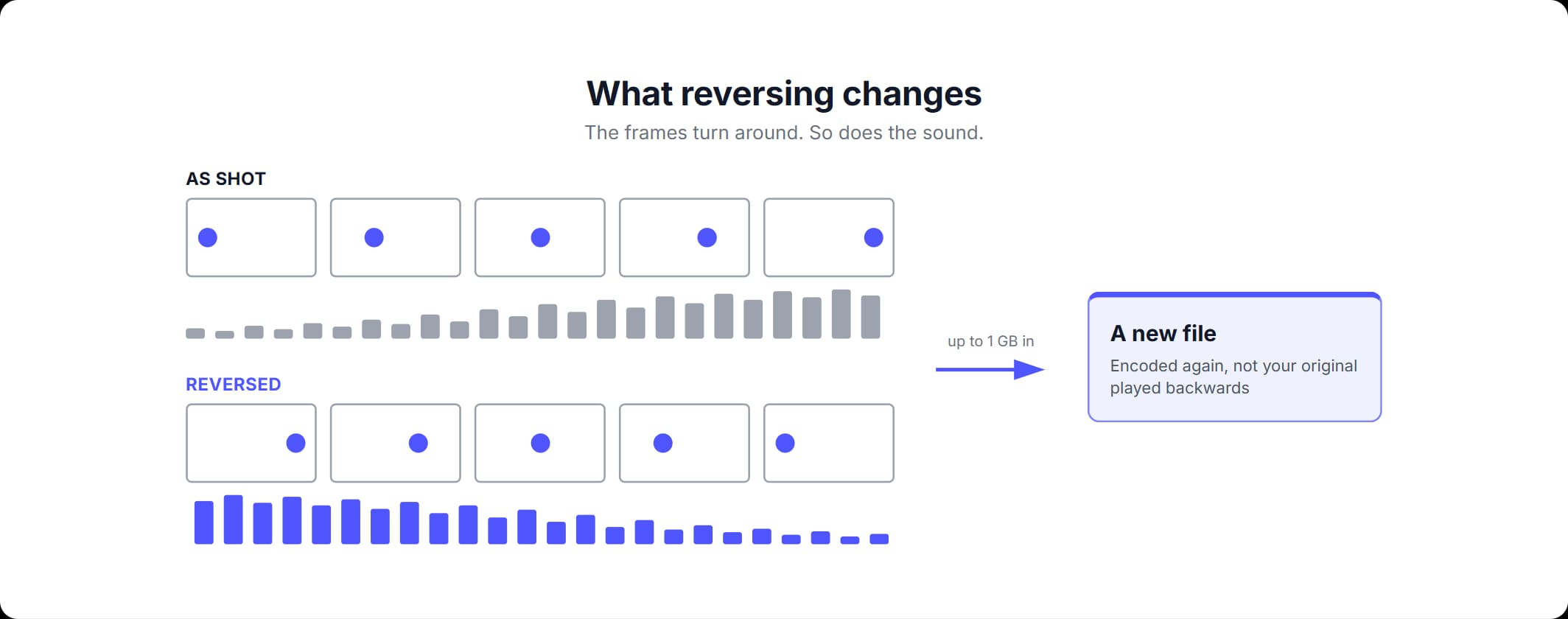
How to reverse a video, and what it does to the sound
To reverse a video, a tool re-orders its frames so the last frame is shown first and the first one last. No new frames are invented: reverse playback is your own footage in the opposite order. The part worth settling before you press anything is the audio. Reverse a video and the sound is reversed along with the picture, so speech stops being intelligible and a word becomes a noise with its emphasis at the wrong end.
How to make reverse video comes down to two questions, and the second one is easy to miss. The picture behaves the way you expect. The file does not: the frames have to come out in a different order, and copying the original stream cannot do that, so the picture is encoded again. What you get back is a new file that plays backwards, rather than your file played backwards. Keep the original and work on a copy of it.
How to reverse video in your browser
Open our in-browser tool for playing a clip backwards, load the file, switch the Reverse toggle and save the result. Three actions, on one page, on a computer or a phone.
- Load the clip. Drag a video file or a GIF onto the upload area, or pick one from the file dialog. The limit is 1 GB per file. A GIF is converted to video before the editor opens it.
- Switch the Reverse toggle to Reversed. The Reverse tab has a toggle with two positions, Not Reversed and Reversed. How to put a video in reverse here is that one switch. The player above it keeps running the clip forwards, because the reverse is applied to the file you save rather than to the preview.
- Press Save, then download the file. The download step offers MP4 or MOV. Pick one, and the finished file is saved wherever your browser puts downloads.
The encoding runs inside the page. Our editor loads ffmpeg.wasm, a WebAssembly build of the FFmpeg encoder that executes in the browser tab, so the clip is processed on your own device and is not uploaded to a server. That is the real difference between this route and most ways to reverse video online free of charge: the file stays on the device, and the ceiling is 1 GB per file because the encoder has to hold the video in the tab's own memory while it works. This is the page people mean by video reverse online.
The preview player shows you the clip as it was loaded, not the reversed version, so the toggle looks like it did nothing. The direction you set appears in the file you save. Judge the result from that file rather than from the preview.
How to reverse a video on Android without an app
You can reverse a video on Android without installing anything. Open the reverse page in the phone's browser, load the clip from the gallery, switch the toggle and save. The encoder arrives as part of the page and runs in the tab, so the work happens on the phone itself and the clip is not sent anywhere. An iPhone works the same way, in its own browser. How to put video in reverse on a phone takes the same three actions as on a laptop, with a smaller screen and less memory to spend on them.
Three things behave differently on a phone.
- Check the file size first. Phone cameras write big files, and the ceiling here is 1 GB per file. A long recording at the phone's highest quality setting can exceed it, and the page tells you when a file is over the limit.
- Leave the tab open and on screen. The encoder lives in the page, so the job only exists while the page does. Close the tab, or let the browser put it to sleep behind another app, and the encode goes with it.
- The work happens on the phone. A tool that uploads borrows someone else's machine for the encode. This one uses the processor in your hand, so the clip never leaves the phone. A shorter clip is less to encode, so trim it down to what you need in the same session.
Gallery apps and phone video editors reverse clips too, and the app stores are full of tools that do nothing else. The browser gets you to the answer first: no install, no account, no camera-roll permission handed to a one-job app, and you find out on the clip you actually have. If the reversed clip is going to a vertical feed, crop it to the shape that feed wants in the same session, before you save. The crop and the reverse belong to the same Save. Reverse, download and then bring the file back to crop it, and the picture takes another round of compression for nothing.
How to reverse a video clip in Premiere Pro
In Premiere Pro, reversing is a setting on the clip. Adobe's own page on reversing a video clip gives the path as: "Simply click on Speed, then Duration, and then Reverse Speed." In the timeline that is two moves: select the clip and open Speed/Duration, then turn on Reverse Speed. Premiere reverse video lives in that dialog rather than in the effects list, which is why people who look for an effect to drag onto the clip do not find one. The same Adobe page says that "when reversing a video in Premiere, it reverses audio automatically too", so the sound runs backwards in Premiere just as it does in the browser.
Reversing one section and building a boomerang loop
Reversing part of a clip. To play a video in reverse from one point to another, mark that section and reverse what is left of the clip. Set the in and out points with the trim tool, switch the toggle and save once. The editor applies the trim before the reverse, so the encoder only handles the part you are keeping. Do it as two jobs instead — reverse, download, then trim the file that comes back — and your in and out points refer to a clip that runs the other way. Finding the moment you wanted then means counting backwards. How to make a video go in reverse for two seconds in the middle of a longer clip is the same idea in a timeline. Take those two seconds out, reverse them and put them back between the pieces on either side. Nothing in this route asks a player to play video in reverse by itself. You make a file that already runs backwards and play it normally.
The boomerang, or ping-pong loop. A boomerang is the clip played forwards and then the same clip played backwards, joined into one file. It is what people mean when they search reverse reverse video. It needs two pieces: the clip and a reversed copy of it. Put the reversed copy after the original wherever you assemble clips. The motion travels out and comes back to where it started. If the loop is going into a chat, a forum post or a web page, turn the finished file into a GIF, which loops on its own.
Reversing a video and keeping the picture clean
Reversing always means re-encoding, in every tool that does it. The frames come out in a new order, and frames in a new order have to be written out again — how to make a video in reverse without that is not a question with an answer, because re-ordering the frames and writing them out are the same operation. What differs between tools is how many trips you make your file take. Here the trim, the crop and the Reverse toggle all belong to the same Save, so you set them together instead of exporting between each step. The reversed picture comes out as H.264 and the audio as AAC: the video codec almost every player and platform accepts, and its usual audio partner.
The rest is boring, and it works. Set the trim, the crop and the Reverse toggle in one session and press Save once, rather than reversing, downloading and then bringing the file back to crop it — that second trip costs the picture another round of compression for nothing. And keep your source file. If the reversed version is not what you pictured, or the sound is not what you imagined once it runs backwards, the original footage is still there to start from.
How to reverse a video in your browser
Three steps from the clip on your device to a file that plays backwards.
Load the clip
Drag a video file or a GIF onto the upload area, or use the file dialog. Up to 1 GB.
Switch the Reverse toggle to Reversed
The toggle has two positions, Not Reversed and Reversed. The direction you set is applied when you save.
Press Save, then download the file
The download step offers MP4 or MOV. Pick one and the file is saved to your device.
Frequently asked questions
Read more articles
Cropping in Practice: Ratio Presets and Clean Exports
VLC Trims by Recording: What That Means for Your File
How to Turn an MP4 into a MOV - and Keep Every Pixel Intact