No Computer Needed: Download Music From YouTube to Your iPhone
Getting the audio out of a YouTube video takes the browser you already have and nothing else. The part nobody explains is where the file goes afterwards, and this article is mostly about that.
Updated September 4, 2026
The short answer: your browser, not an app
To download audio from YouTube on an iPhone, you need Safari and nothing else. Copy the video's link, paste it into our YouTube to MP3 page, switch to the Audio tab and tap Download. You install nothing and you pay nothing, so downloading YouTube audio to an iPhone free is the ordinary case here, not a trial. Nothing changes for music, so this is also how to download music from YouTube to an iPhone and how to download audio from YouTube to your phone on any other platform.
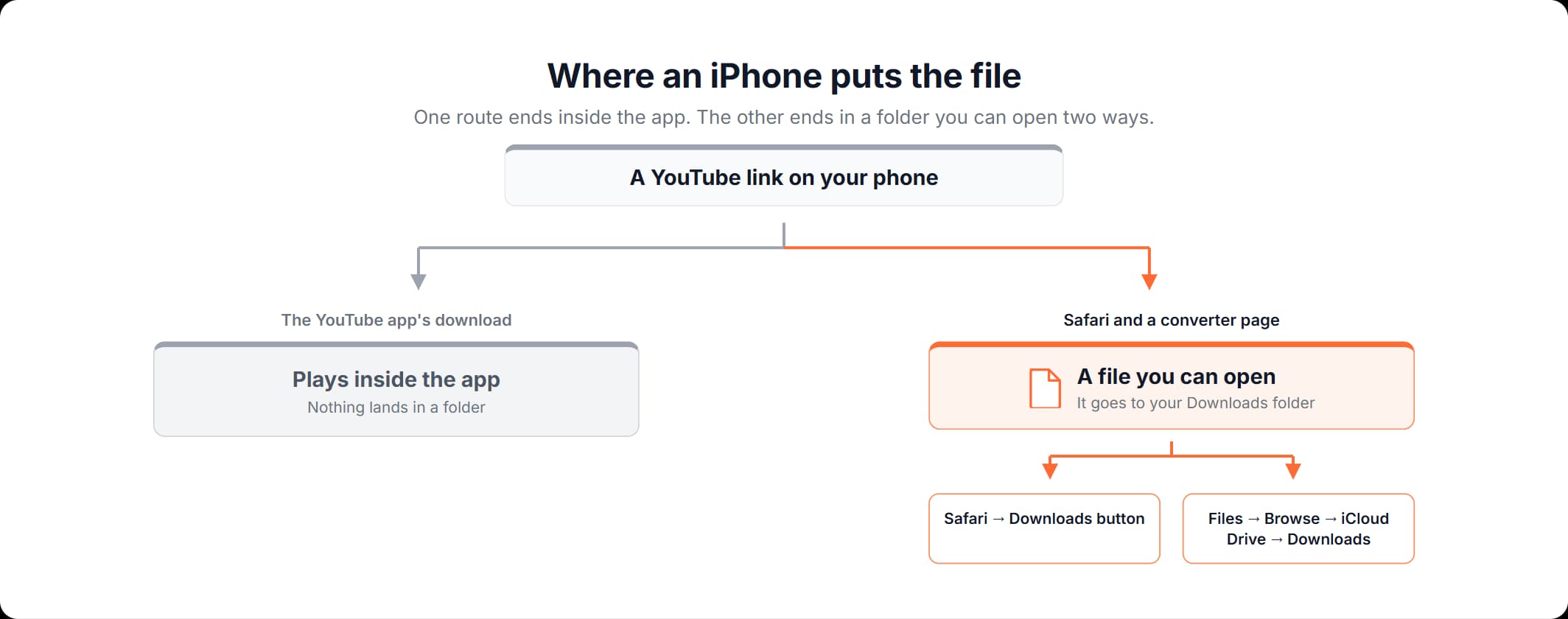
The download button in the YouTube app does a different job: it gives you permission to play that video inside the app while you are offline, not a file you can open, move or keep. A separate article compares all the routes and covers the legal position. If you want the picture as well as the sound, our YouTube video downloader takes the same link. Getting the file is easy. Finding it afterwards is the hard part, because an iPhone shows you no folders. That is what most of this article covers.
How to download YouTube audio on an iPhone
A YouTube audio download on an iPhone happens in Safari: copy the link in the YouTube app, paste it into the converter page, then pick the row you want on the Audio tab. Every label below is the one on screen.
- Copy the link in the YouTube app. Tap Share, then Copy link. If the video is open in a Safari tab, copy the address from the address bar instead. Short youtu.be links are accepted too.
- Open the YouTube to MP3 page in Safari. Paste the link into the field that reads "Paste the YouTube link (video or Shorts)".
- Tap Convert. Nothing is uploaded from your phone, because the page works from the link.
- Switch to the Audio tab. The result opens on the Video tab. This is the step anyone trying to download YouTube video audio to an iPhone misses.
- Pick a row and tap Download. The Audio tab lists what that video has. Each row gives a file type with a quality label beside it and a Download link in the Action column. Four rows appear at first, and Show More opens the rest when there are more.
- Check Downloads in Safari. If Safari asks you to confirm the download, confirm it. Then tap the Downloads button next to Safari's search field, and the file is listed there. That button is where Apple's own instructions for finding a download begin.
That is the whole procedure to download YouTube audio to an iPhone.
Where the file went and how to open it
When you download audio from YouTube on an iPhone, the file is in your Downloads folder, and there are two documented ways to open it. iOS has no visible file system, so a download does not appear in a folder you can open from the Home Screen. The Files app, Apple's own file browser, is how you reach it.
Apple documents both routes on Where to find downloads on your iPhone or iPad:
- From Safari. "Next to the search field in Safari, tap the Downloads button", then "Tap Downloads to see your downloaded files."
- From the Files app. Open the Files app, tap the Browse tab, tap iCloud Drive, then tap the Downloads folder to see your downloaded files.
The Downloads folder is not always in iCloud Drive, so two people can download audio from YouTube to an iPhone the same way and find the file in different places. Apple's page on finding files on your iPhone or iPad says to check the Downloads folder in iCloud Drive when a download is missing, and lists On My iPhone in the same Browse screen for files saved on the device itself. Safari's Downloads button works either way: it lists what Safari saved, wherever it saved it.
What you have at that point is a file rather than a permission. YouTube audio on an iPhone, once it is downloaded, is listed in Downloads like anything else you save, and Apple's instruction on the same page for opening what you find there is one line: "Tap to open the file." For what kind of file you have and whether it is any good, see the guide to YouTube audio formats.
On an iPad
How to download music on an iPad from YouTube is the same question with the same answer. The steps above work unchanged, and Apple's page covers iPhone and iPad together, so downloading music from YouTube to an iPad ends in the same Downloads folder. In the Files app the route is identical: Browse, then iCloud Drive, then Downloads. The one difference is the position of the Downloads button. Apple places it next to Safari's search field, and that field is not in the same place on every screen size.
How to download YouTube audio on Android
How to download music from YouTube on Android is the same three steps in Chrome. You install no app and no APK, and nothing is charged, which also answers how to download music from YouTube on Android for free. You can download YouTube audio on Android without an account.
- Copy the link. In the YouTube app, tap Share, then Copy link.
- Paste it into the converter page in Chrome and tap Convert.
- Switch to the Audio tab and tap Download. Pick the row you want.
Chrome saves the file to your device's download location. Google's instruction for finding it is one sentence: "To find all the files that you've downloaded to your device, open the Files app." Inside Chrome, in Google's words: "At the top right, tap More and then Downloads. If your address bar is at the bottom, swipe up on the address bar. Tap Downloads." Both are on Google's Download a file page, Android tab.
Downloading audio from YouTube on Android has one advantage over doing it on an iPhone: a single place to look. Downloading YouTube music on Android ends in the device's download location, and Google's page gives two routes to that one location, where an iPhone has two possible folders. Which app opens the file afterwards depends on the phone, and Google's page does not say.
What will not help
Three moves look reasonable and waste your time.
- Opening the Files app to look for something you downloaded inside the YouTube app. That download is permission to play in the app rather than a file, as the routes article explains, so there is nothing in Files to find.
- Installing an app for the job. The browser already does it. Advice that ends with an APK, an installer from outside the Play Store, asks you to put software on the phone to save a file the browser saves on its own.
- Looking for a high-quality option to make the audio better. No option on any page changes what YouTube encoded for that video, and why the source sets the limit is a separate article.
How to download audio from YouTube on an iPhone
Four steps in Safari, ending with an audio file in your Downloads folder.
Copy the link in the YouTube app
Tap Share, then Copy link. If the video is open in a Safari tab, copy the address from the address bar instead. Short youtu.be links work.
Open the converter in Safari, paste and tap Convert
The field is marked "Paste the YouTube link (video or Shorts)". Nothing to install and no account to make.
Switch to the Audio tab and tap Download
The result opens on the Video tab. The Audio tab lists what that video has, each row with a file type and a quality label. Pick the row you want.
Open it from Downloads
Tap the Downloads button next to Safari's search field, or open Files and go to Browse, then iCloud Drive, then Downloads. Apple's instruction for opening what you find there is to tap the file.
Frequently asked questions
Read more articles

Downloading a Song From YouTube: Offline Play or a File You Keep
What You Actually Get When You Download Audio From a YouTube Video
Why Your TikTok Video Looks Soft, and How to Measure the Quality Loss