What You Actually Get When You Download Audio From a YouTube Video
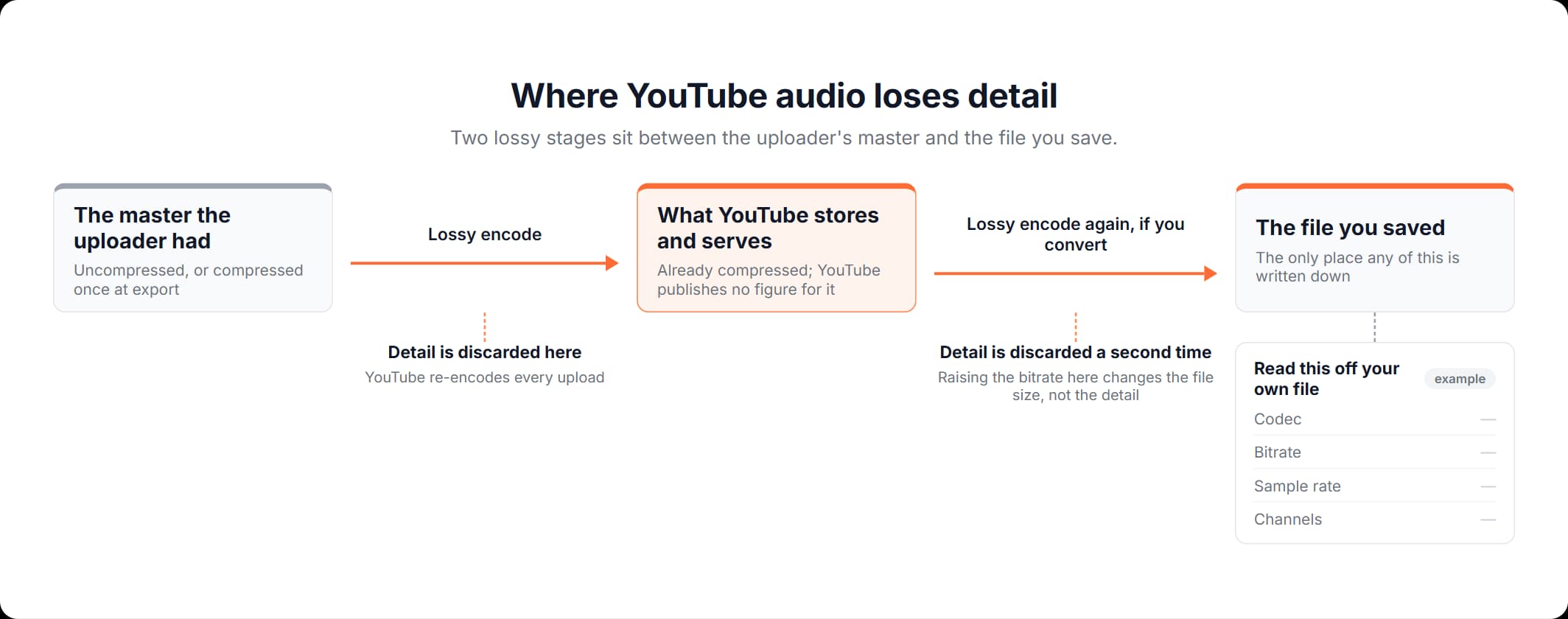
The audio track inside a YouTube video was compressed before you ever touched it. Nothing you do afterwards adds quality back. The only question left is whether you lost more, and your saved file is the only place that answers it.
Updated September 4, 2026
The short answer, and the one thing every guide leaves out
To download audio from YouTube, copy the video's link and turn that link into an audio file: paste it, switch the result to the Audio tab, choose one of the versions listed there and save it. Yes, you can download audio from YouTube this way with nothing installed, and the link is all you need. No choice you make afterwards produces better sound than YouTube is already serving.
The audio in a YouTube video is not a master recording. A video file carries a separate audio track alongside the picture, and to download audio on YouTube is to keep that track and drop the picture. Extracting it gives you that track exactly as it already is. A lossy encoder compressed it before it reached you, and lossy means detail was thrown away permanently to make the file smaller. That leaves two questions: what you got and what to keep it in. The file answers both. If you want to download a YouTube audio track for every song on an album, or to check what the YouTube Terms of Service say about any of this, our guide to downloading music from YouTube covers both.
How to download the audio from a YouTube video
To download audio from a YouTube video, you need the link and a browser. Nothing changes when you download audio from YouTube videos one after another: each one needs only its own link. Here is the whole sequence.
- Copy the link. On a computer, take it from the address bar. In the YouTube app, tap Share, then Copy link. Short
youtu.belinks work too. - Paste it and click Convert. The field on the YouTube to MP3 converter accepts a video link or a Shorts link.
- Switch to the Audio tab. The result opens on the Video tab, so the audio of a YouTube video is one click away, under the tab marked Audio.
- Pick a row. The Audio tab lists the audio versions the page found for that link, in a table with a File type column and an Action column. Each row names a file type and shows a quality label. Four rows appear at first, and Show More opens the rest.
- Click Download on the row you want. The link in the Action column is what saves the file.
Downloading audio from a YouTube video on a PC puts the file wherever your browser keeps downloads. That is the Downloads folder, unless you have told the browser to ask every time.
Read what you actually got
When you download an audio file from YouTube, the file reports what is inside it: the codec that encoded the sound, the bitrate, the sample rate and the number of channels. Bitrate is how many bits per second the encoder spent on the audio, and it is the number other guides tell you to maximize without ever telling you to look at it. Here is where to find it.
- In VLC: open the file, then Tools, then Codec Information.
- On macOS: select the file in Finder, then File, then Get Info.
- On Windows: right-click the file, then Properties, then the Details tab.
The bitrate you see there is what YouTube served for that video, plus whatever your conversion did to it afterwards, and it is a ceiling. No later step can raise it, because a lossy encoder cannot put back detail that was not in its input. YouTube publishes nothing about the audio it serves, so the file itself is the only source for that number. What Google does publish is the bitrate it asks creators to upload at, and those figures are in our YouTube bitrate guide. They describe the file the uploader sent, not the one you downloaded. So if you want to download audio files from YouTube "without losing quality", the phrase can honestly mean one thing: no worse than what YouTube served. The figure on your screen is that limit.
MP3, M4A, WAV: which one to keep, and why a bigger number is not better
Keep the file the download gave you, and convert only when something you use refuses to open it. The reason is the second encode: turning YouTube's already-compressed audio into an MP3 runs it through a fresh lossy pass, so the new encoder discards detail again and cannot restore what the first pass dropped. A higher output bitrate only makes a bigger file out of the same input. The extension does not tell you which encoder produced the sound, because .mp3, .m4a and .wav are containers, the box a file sits in, while MP3, AAC and PCM are the codecs inside. Our guide to video formats sets out that distinction in full.
| Keep it as | When that is right | What it does not do |
|---|---|---|
| Whatever the download gave you | You want to listen, and your player opens it | It does not guarantee every editor and player will accept it |
| MP3 | Something you need to use plays nothing else | It does not add detail at any bitrate; a higher setting only enlarges the file |
| WAV | An editor needs an uncompressed input file to work on | It does not undo the compression: the same sound, a file many times bigger |
| FLAC | The source was lossless to begin with, which a YouTube download never is | It does not recover anything: lossless compression of a lossy file preserves the lossy file |
If what you have is a video on your disk and it is going into an editor, MP4 to WAV gives you the uncompressed file the editor wants. Whatever the encoder behind a converter page is set to, the result is a second lossy pass over audio YouTube had already compressed. And if the file you saved is not the format you wanted, converting it would be that second pass for the sake of an extension, so the first question is whether anything you use refuses the file you have. If it does, no page here will do it: our conversions run between video and audio in either direction, never from one audio format to another.
When the video is already on your disk
When you already have the video file and not a link, MP4 to MP3 extracts the audio from it: upload the MP4, choose an audio format, download the result. The upload ceiling is 1 GB per file, which is a limit on what you send us and has nothing to do with pasting a YouTube link. From an MP4 the audio targets are MP3, M4A, WAV, FLAC and WMA. Each one is a button in the Audio group of the format list.
The second-encode rule applies to a local file too. The audio inside a video you downloaded from YouTube was compressed by YouTube, so converting that audio to MP3 is still a second lossy pass, and choosing WAV still gives you a large file that sounds the same. This route is better than the link in one case: when the video came from somewhere else, a camera or an editor, and its audio has been through one encoder rather than two.
What will not help
Three things look like fixes and change nothing, so they are worth knowing before you try them. If you are doing this on a phone, where the file goes and how to play it are covered in our guide to downloading audio from YouTube on an iPhone.
- Converting the file you saved to a higher bitrate. The encoder has nothing extra to put in the bigger file, so you get a bigger file.
- Choosing a lossless format for a lossy source. Lossless preserves its input perfectly, and its input is the compressed audio you already have.
- Hunting for a "high quality" or "HD audio" option. The audio any page can give you is what YouTube encoded for that video, so a label promising more does not change what arrives.
How to download audio from YouTube
From a video link to an audio file, plus the number that tells you what is in it.
Copy the video's link
On a computer, copy it from the address bar. In the YouTube app, tap Share, then Copy link. Short youtu.be links work too.
Paste it and click Convert
The field on the page accepts a video link or a Shorts link. Nothing is installed and no account is needed.
Switch to the Audio tab and pick a row
The result opens on the Video tab. The Audio tab lists the audio versions the page found for that link, each row with a file type and a quality label. Four rows appear at first, and Show More opens the rest.
Check what you got
Open the saved file's properties: Tools, then Codec Information in VLC; Get Info on macOS; Properties, then Details on Windows. Read the codec and the bitrate. The bitrate is the ceiling for anything you do next.
Frequently asked questions
Read more articles

Downloading a Song From YouTube: Offline Play or a File You Keep

The YouTube Bitrate to Set Before You Export
Why Your TikTok Video Looks Soft, and How to Measure the Quality Loss